> ## Documentation Index
> Fetch the complete documentation index at: https://openproofs.pro/llms.txt
> Use this file to discover all available pages before exploring further.
# Quickstart: Create an Account and Place Your First Trade
> Learn how to create your FORXEA account, complete identity verification, configure your workspace, and execute your first trade in under 10 minutes.
This guide walks you through everything you need to go from a blank screen to an active trading workspace. By the end, you'll have a verified FORXEA account, a configured workspace, and a completed first trade — all in under 10 minutes.
 Start by registering for a FORXEA account:
1. Go to FORXEA and enter your email address and a strong password.
2. Check your inbox for a verification email from FORXEA and click the confirmation link to activate your account.
3. Complete identity verification — this is required before you can place live trades. Upload a government-issued ID and a proof of address document. Verification typically takes 1–2 business days.
4. Read and accept FORXEA's Terms of Service and Privacy Policy to continue.
Once your identity is verified, you gain full access to live trading across all supported markets.
After logging in, take a few minutes to configure your workspace so it suits the way you trade:
1. **Choose your market view** — select either **Compact** (more instruments visible at once) or **Expanded** (more detail per instrument) depending on your preference.
2. **Pin your watchlist** — search for the markets you follow most closely and pin them to your watchlist for quick access. You can add stocks, forex pairs, indices, commodities, and more.
3. **Configure notifications** — go to **Settings > Notifications** and choose which alerts you want to receive, such as price movements, order fills, and account activity. Select delivery by email, in-app, or both.
You can adjust any of these settings at any time from your profile menu.
With your workspace ready, start exploring live market information:
1. Navigate to the **Markets** tab in the main navigation bar.
2. Use the search bar to find an instrument — for example, type `AAPL` for Apple stock, `EUR/USD` for a forex pair, or `FTSE 100` for the UK index.
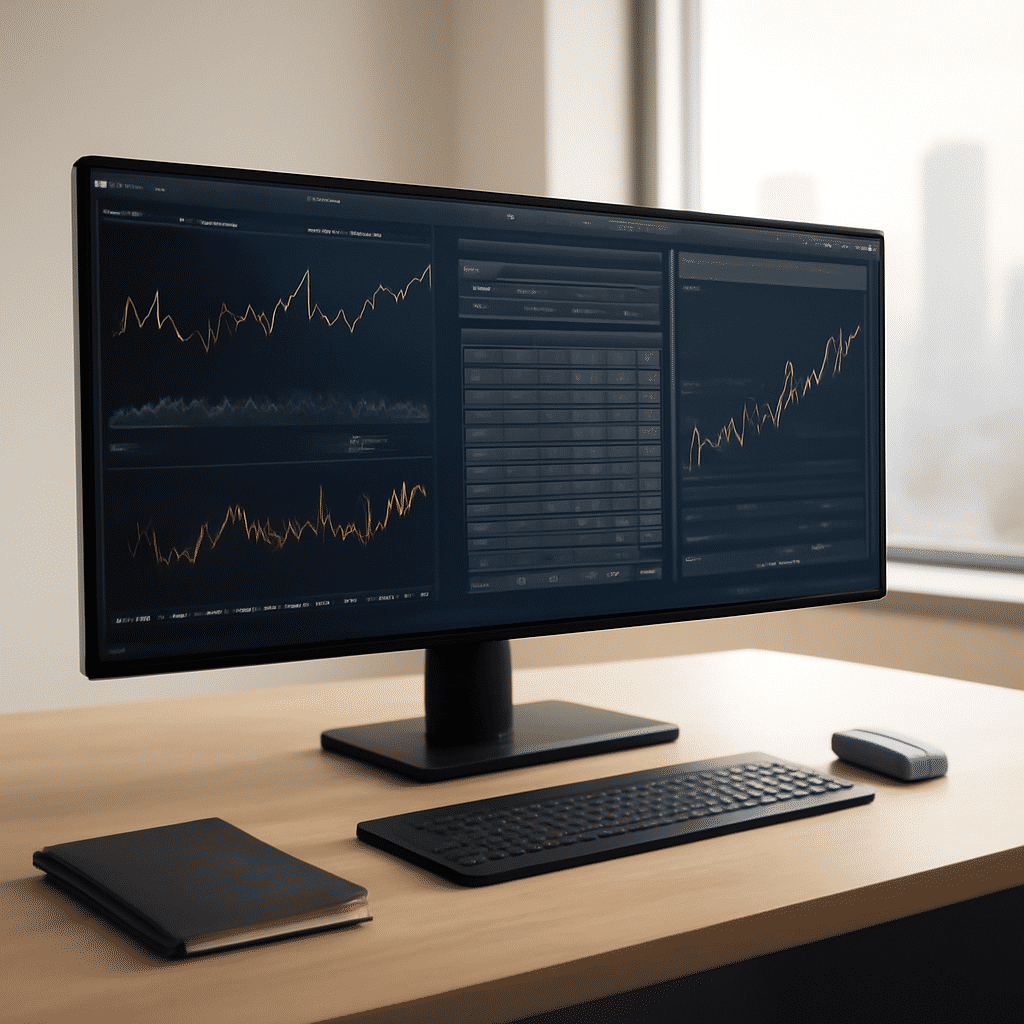
3. Select the instrument to open its detail view. You'll see the live price, bid/ask spread, an interactive price chart, and a suite of analytical tools.
4. Apply indicators, adjust the chart timeframe, or switch between chart types (candlestick, line, bar) to analyse the instrument's behaviour.
FORXEA streams data in real time, so the prices and charts you see always reflect the latest market activity.
When you're ready to trade, open the order panel for your chosen instrument:
1. Click **Trade** on any instrument's detail page to open the **Order Panel**.
2. Select **Buy** or **Sell** depending on your intended direction.
3. Enter your desired **quantity** (number of units or contracts).
4. Choose your **order type**:
* **Market Order** — executes immediately at the best available price.
* **Limit Order** — executes only when the market reaches a price you specify.
5. Review the order summary — including estimated cost, fees, and order details — then click **Confirm** to submit.
Once confirmed, your trade appears immediately in your **Portfolio View**, where you can monitor its performance, set stop-loss or take-profit levels, and close or modify the position at any time.
If you want to practise before trading with real money, FORXEA offers a paper trading mode you can enable from **Account Settings > Trading Preferences**. Paper trading lets you place simulated trades using real market data — with no financial risk — so you can build confidence and test strategies before going live.
## What's Next
Start by registering for a FORXEA account:
1. Go to FORXEA and enter your email address and a strong password.
2. Check your inbox for a verification email from FORXEA and click the confirmation link to activate your account.
3. Complete identity verification — this is required before you can place live trades. Upload a government-issued ID and a proof of address document. Verification typically takes 1–2 business days.
4. Read and accept FORXEA's Terms of Service and Privacy Policy to continue.
Once your identity is verified, you gain full access to live trading across all supported markets.
After logging in, take a few minutes to configure your workspace so it suits the way you trade:
1. **Choose your market view** — select either **Compact** (more instruments visible at once) or **Expanded** (more detail per instrument) depending on your preference.
2. **Pin your watchlist** — search for the markets you follow most closely and pin them to your watchlist for quick access. You can add stocks, forex pairs, indices, commodities, and more.
3. **Configure notifications** — go to **Settings > Notifications** and choose which alerts you want to receive, such as price movements, order fills, and account activity. Select delivery by email, in-app, or both.
You can adjust any of these settings at any time from your profile menu.
With your workspace ready, start exploring live market information:
1. Navigate to the **Markets** tab in the main navigation bar.
2. Use the search bar to find an instrument — for example, type `AAPL` for Apple stock, `EUR/USD` for a forex pair, or `FTSE 100` for the UK index.
3. Select the instrument to open its detail view. You'll see the live price, bid/ask spread, an interactive price chart, and a suite of analytical tools.
4. Apply indicators, adjust the chart timeframe, or switch between chart types (candlestick, line, bar) to analyse the instrument's behaviour.
FORXEA streams data in real time, so the prices and charts you see always reflect the latest market activity.
When you're ready to trade, open the order panel for your chosen instrument:
1. Click **Trade** on any instrument's detail page to open the **Order Panel**.
2. Select **Buy** or **Sell** depending on your intended direction.
3. Enter your desired **quantity** (number of units or contracts).
4. Choose your **order type**:
* **Market Order** — executes immediately at the best available price.
* **Limit Order** — executes only when the market reaches a price you specify.
5. Review the order summary — including estimated cost, fees, and order details — then click **Confirm** to submit.
Once confirmed, your trade appears immediately in your **Portfolio View**, where you can monitor its performance, set stop-loss or take-profit levels, and close or modify the position at any time.
If you want to practise before trading with real money, FORXEA offers a paper trading mode you can enable from **Account Settings > Trading Preferences**. Paper trading lets you place simulated trades using real market data — with no financial risk — so you can build confidence and test strategies before going live.
## What's Next
 Now that you're set up, explore everything FORXEA has to offer:
Discover the full range of FORXEA's trading tools, workspace options, and platform capabilities.
Learn how to read and work with FORXEA's real-time data feeds, charts, and market depth information.
Go deeper into order types, trade management, risk controls, and portfolio tracking.
Find answers to common questions about accounts, trading, data, and technical issues.
Now that you're set up, explore everything FORXEA has to offer:
Discover the full range of FORXEA's trading tools, workspace options, and platform capabilities.
Learn how to read and work with FORXEA's real-time data feeds, charts, and market depth information.
Go deeper into order types, trade management, risk controls, and portfolio tracking.
Find answers to common questions about accounts, trading, data, and technical issues.